Learn / The IMC Machine
How To Work The Live Event Production Hub

An instructional path for the people who actually run live events, producers, venue managers, stage managers, artist managers, and crew. Five sequential modules, each with a concept, a procedure, a hands-on task, and a reflection prompt. Designed to be worked through in one sitting before your next advance call.
The Live Event Production Hub Inside The App. Six pre-production worksheets, run of show, crew portal, safety.
Click To Enlarge ↗01 Course Syllabus
What You Will Be Able To Do.
Learning Objectives
By the end of this course, you will be able to:
- Anchor an entire production to a single canonical event record
- Work the six pre-production worksheets as one structured advance, in order
- Build and call a Run Of Show that the entire team works from
- Capture, caption, and stream the live event without bolting on a second toolchain
- Turn the show, after it happens, into a campaign asset and a permanent archive
Pre-Requisites
A Workspace And One Real Event
You need an active IMC Machine workspace and at least one upcoming event you are actually advancing. The course assumes you have run a show before, in some form.
Format
Sequential, Or Pick The Module Your Role Owns
The full path runs Modules 01 through 05 in order. If you only own one part of the show, jump to the module that matches your role.
Estimated Time
~68 Minutes
Five modules of 10 to 15 minutes each, including the hands-on task. Print the syllabus to work offline during the advance.
02 Audience Profiles
Who This Course Is For.
Event Producer / Promoter
Owns the full event from first idea to post-show wrap. Read all five modules.
Venue Manager / Box Office Lead
Owns the room and the front of house. Focuses on Modules 1, 2, and 3.
Production Manager / Stage Manager
Owns the technical run from advance to load-out. Focuses on Modules 2, 3, and 4.
Artist / Performer Manager
Owns the artist record and the rider. Focuses on Modules 1, 2, and 5.
Crew / Department Head
Executes the show. Focuses on Modules 3 and 4 and reads Module 1 for context.
Marketing Or PR Lead
Reads the full course to understand where the campaign material comes from, then crosses to Learn The Creative Studio.
03 The Five Modules
The Event Record As Spine
A production is a stack of decisions that all read from the same set of facts. The event record holds those facts, the date, the venue, the artist, the doors, the set list, the rider, the contacts. Every worksheet, every cue, every pitch downstream is anchored to it. Get the record right first, and the rest of the system has a place to put what it knows.
In This Module
You Will Be Able To:
- Create an event record with the canonical facts in the right fields
- Reuse a venue profile and an artist profile instead of typing them again
- Predict how a change to the record propagates downstream
Key Concepts
A theatre running ten shows a season, a venue running two hundred shows a year, a touring artist with twenty-eight dates, all of them have the same problem. The same handful of facts about a single performance get re-typed across a contract, a rider, a poster, a press release, a Facebook event, a calendar invite, and a payroll line. When the start time shifts by thirty minutes, almost all of those go out of date silently.
The event record fixes this by being the canonical answer. The Run Of Show, the Crew Portal, the marketing campaign, the box-office page, all of them read from it. You write the positioning, the record holds the facts, and the platform keeps everyone in sync.
Procedure
- Open Events Hub and click Start Event, or paste an inbound email or voice memo into AI Intake to draft the fields.
- Verify the canonical facts: date, doors, set time, venue, lineup, ticket link, age policy, contact roles.
- Link a venue profile rather than retyping the address, if the profile doesn’t exist yet, build it once and reuse it forever.
- Link an artist profile with bio, technical rider, and contact info, for the same reason.
- Save the record. Every worksheet and downstream draft you generate next will pull from this version.
Try It Now
Pick an event you have on the calendar in the next forty-five days. Open the event record and verify the canonical facts top to bottom. Fix anything wrong, and link the venue and artist profiles. If the profiles don’t exist yet, build them now, you will reuse them every time you book that room or that performer again.
Check Your Understanding
In your current workflow, how many separate places does an event’s start time live? If the time changed tomorrow, how many of those places would still be wrong on the day of the show?
Related Reading
For the longer argument behind a canonical record, see Theaters & Presenters, Independent Music Venues, and Festivals, three rooms where the cost of a missed update gets very expensive in a hurry.
The Six Planning Worksheets
A real production advance is a sequence of structured deliverables, not a Slack thread. The Hub builds the advance into six worksheets that run from schedule through marketing. You work them in order. By the time you close the last one, the show is genuinely ready, not just feeling-ready.

Staff Scheduler. Crew assignments and call-time coordination on the production record.
Click To Enlarge ↗In This Module
You Will Be Able To:
- Work through worksheets 1.1 through 1.6 in order on a single event
- Hand off any one worksheet to a department head without losing context
- Decide which worksheet to escalate when the calendar pressure starts
Key Concepts
The six worksheets exist because the experienced production manager already keeps them on a clipboard, in a notebook, in a private spreadsheet that nobody else can read. The Hub makes that clipboard a shared, structured surface so the rest of the team can read it too, and so that next year’s production manager can pick it up cold.
The order matters. The schedule sets the spine. The venue survey checks the room against the schedule. The meetings log proves you talked to the people you were supposed to talk to. The crew roster matches the schedule to humans. Permits and marketing close the loop with the outside world.
Procedure
- Open Production Operations from the linked event record.
- 1.1 Schedule, build the master production schedule from load-in through load-out, including sound check, doors, and set times.
- 1.2 Venue Survey, walk the room or call the venue contact, and record the survey against the schedule.
- 1.3 Meetings Log, log every advance call and rehearsal, who attended, and what was decided.
- 1.4 Crew Roster, assign departments and call times, and have the Role Responsibility Map open beside it.
- 1.5 Permits, track permits, insurance, and the venue’s emergency action plan in the Safety & Risk Hub.
- 1.6 Marketing, align the campaign timeline to the schedule, then hand off to Learn The Creative Studio for the actual campaign work.
Try It Now
Pick the same event you used in Module 01. Work through 1.1 (Schedule) and 1.4 (Crew Roster) end to end. Stop. Look at the worksheets together and ask whether anyone on the call sheet does not have an assigned department on the schedule.
Check Your Understanding
Of the six worksheets, which one have you historically skipped or improvised? What has that cost you, in actual dollars or actual relationships, in the last twelve months?
Instructor Note
The worksheets are read-write for the whole production team. The point is shared context, not gatekeeping. If a department head needs to edit 1.4 to add a runner, let them, the record of who changed what stays in the audit log.
Run Of Show And Day-Of Ops
The Run Of Show is the cue document the stage manager calls from. Crew Portal is where the crew reads it. Day-Of Ops is where the room is logged in real time. This module covers building one Run Of Show, briefing the crew on it, and running the event from it.

The Run Of Show. The timed cue document the stage manager calls from.
Click To Enlarge ↗In This Module
You Will Be Able To:
- Build a timed Run Of Show with cue numbers, owners, and dependencies
- Brief the crew via Crew Portal so everyone reads the same cue document
- Log a live show in Event Ops Modules without losing the through-line
Key Concepts
The cue document is small in size and enormous in consequence. It is the artifact that translates “the show starts at 8” into “at 7:58 house lights go to half, at 7:59 announcer mic hot, at 8:00 walk-on track plays, at 8:00:15 stage wash hits full.” The Run Of Show in the Hub is built so the same row reads cleanly to lighting, sound, FOH, and stage management at the same time.
Day-Of Ops is the running log of what actually happened, not what was planned. The two coexist. After the show, the gap between them is the most useful debrief document the team has.
Procedure
- Open Run Of Show from the event record and pre-populate from the schedule worksheet (1.1).
- Add cues in the order they will be called: pre-show, doors, walk-in, first cue, intermission, etc. Tag each cue with its responsible department.
- Lay in the Stage Plot if the room is loaded in a non-standard configuration.
- Open Crew Portal and confirm the Run Of Show appears for every department head you assigned in 1.4.
- Brief the crew on the cue document at the production meeting. Walk the major transitions live.
- On show day, open Event Ops Modules on the SM’s station and log calls as they go, doors open, top of show, scene changes, anything off-spec.
- After strike, export the Day-Of log as the show report. Compare to the Run Of Show. Note the deltas for next time.
Try It Now
Take an event you have already run. Build the Run Of Show after the fact, from memory. Note which cues you cannot remember the exact timing of, those are the cues that should have been written down to begin with.
Check Your Understanding
When something went sideways at your last show, where was the gap, was the cue not written down, or was it written down and not read? The fix for those two failures is different.
Capture, Caption, And Stream Live
A live performance is also a recording, also a stream, also, if you do this right, a year of marketing content. The Hub has a complete capture-to-stream lane built into the same workspace the rest of the production is in, so nothing has to be exported, re-uploaded, or re-described.
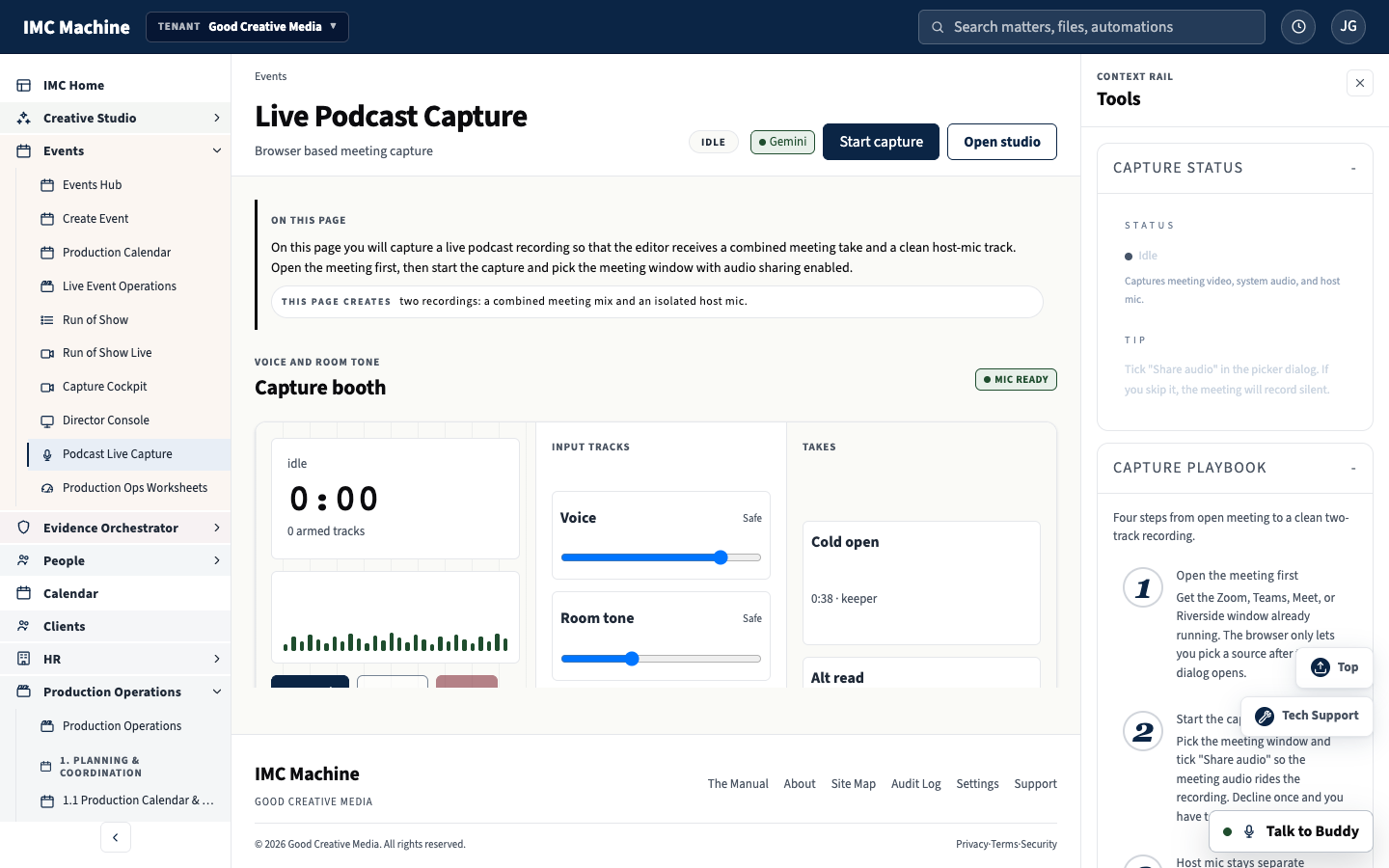
Podcast And Live Capture. Live audio and video captured directly on the platform during the event.
Click To Enlarge ↗In This Module
You Will Be Able To:
- Plan a multi-camera capture with predictive active-speaker switching
- Add accurate live captions and one or more translation targets
- Push an authenticated stream to one or more destinations from the same browser session
Key Concepts
Streaming used to be its own department. Two laptops, an encoder, somebody’s home OBS install, and the prayer that the venue wifi held. The Hub collapses that into a browser session that runs from the same room as the Run Of Show.
Captions are not a nice-to-have. For arts venues, conservatories, CLE providers, and houses of worship, captions are the accessibility line your audience expects. Live captions in the Hub use Google Gemini for transcription quality and run as a streaming overlay, with optional translation to Spanish, ASL gloss, or any of the supported targets.
Procedure
- Open The Director Console on the AV station’s browser.
- Add your cameras to Multi-Camera Capture and confirm sync. Enable Predictive Virtual PTZ for the speaker or vocalist position.
- Turn on Live Captions & Translation with your target language(s).
- If you are pushing the stream out, configure Livestream Relay with the destination keys for YouTube, the venue site, or a private link.
- If you are capturing audio for a podcast, route the board feed into The Podcast Studio so it lands as its own asset for the marketing team.
- After the show, the captured files appear on the event record automatically. No upload step.
Try It Now
Open The Director Console on a laptop pointed at any source, even a phone. Switch between two virtual cameras while a colleague talks. Notice that the cut happens on the talker, not on a fader. That is what active-speaker switching does for the show.
Check Your Understanding
What audience could you serve next year that you cannot serve today because the capture step is too expensive? Captioned subscribers, distant alumni, donors who cannot travel, what does each of them mean for the program?
Related Reading
See Orchestras & Chamber Ensembles, Universities & Conservatories, and Bar Associations & CLE Providers for industry framing on captioned live capture.
The Show As Permanent Record
The show ends. The record does not. After strike, the captured files, the Day-Of log, the cue document, the crew roster, and the campaign tracker live on as one connected archive, ready to feed the next campaign, the next grant application, and the next subscriber email.

Safety + Risk On The Permanent Record. Permits, EAPs, incident reporting all stay with the matter.
Click To Enlarge ↗In This Module
You Will Be Able To:
- Route a captured show into the Marketing Production Run for downstream content
- Use the Distribution Ledger to track where assets went and who used them
- Connect a season subscription or box-office sale to the recorded show that justified it
Key Concepts
For most organizations, last year’s show is a folder on somebody’s desktop and three social posts. The Hub treats it differently. The same record that anchored the planning anchors the archive, so the photographer’s gallery, the captioned recording, the press pickups, and the post-show survey all live on one page.
That archive is what fundraising, grant reporting, and next-season programming actually run on. The job of the Hub is to make that retrieval one click instead of a Slack search.
Procedure
- After strike, open the event record and confirm the captured assets attached automatically.
- Send the assets into the Marketing Production Run and pick up where Learn The Creative Studio picks up.
- Use the Distribution Ledger to record who got what, press outlet, sponsor, board chair, donor, and when.
- If you sell subscriptions or season tickets, link the show to Subscriptions & Season Tickets so the loyalty record carries forward.
- For festivals or runs that stack shows, link the parent run to each child performance so the archive holds the season, not just the night.
Try It Now
Take the last show you actually ran. Try to find, in under sixty seconds, the photographer’s gallery, the program notes, the captioned recording, and the post-show audience numbers. Where did you have to look? That is the work you are eliminating going forward.
Check Your Understanding
If a funder asked tomorrow for proof of attendance, captions, and community reach for the last three seasons, how long would assembling that take you today? How long should it take?
04 Glossary
Key Terms For This Course.
- Event Record
- The single canonical record for one performance. Anchors the Run Of Show, the worksheets, the campaign, and the archive.
- Production Advance
- The sequence of pre-event deliverables that get a show ready. In the Hub, this is the six worksheets in Production Operations.
- Run Of Show
- The timed cue document that the stage manager calls from during the live event. Lives in Run Of Show.
- Cue
- One timed instruction with an owner and a dependency. A line in the Run Of Show.
- Director Console
- The browser-based multi-camera switcher that calls active-speaker cuts. See The Director Console.
- Active-Speaker Switching
- Cutting to whichever camera is currently pointed at the person speaking, automatically. Native to the Director Console.
- Predictive Virtual PTZ
- Cue-aware panning, tilting, and zooming on a single physical camera, calculated in the browser. See Predictive Virtual PTZ.
- Livestream Relay
- The authenticated push from the venue to one or more destinations, YouTube, the venue site, a private link. See Livestream Relay.
- Crew Portal
- The crew-facing surface where call times, department contacts, and the Run Of Show are read on show day. See The Crew Portal.
- Stage Plot
- The diagram of the room loaded in for the show, mic positions, monitor wedges, backline. See The Stage Plot Editor.
- Day-Of Ops
- The real-time log of what actually happened during the show, kept beside the Run Of Show that said what was supposed to happen.
- Distribution Ledger
- The post-show record of who got which asset and when. See The Distribution Ledger.
05 Further Learning
Continue The Path.
Next Course
The Creative Studio
Where the show, once it has happened, becomes a campaign, press, social, podcast, and email content that all read from the same event record.
Course Overview
All Learning Paths
The full Learn library for The IMC Machine, with brief descriptions of the four product courses.
Product Page
The Live Event Production Hub Overview
The product page for the Production Hub, what it does, who it serves, and how it fits inside The IMC Machine.
Feature Index
All Production Hub Features
Every feature inside the Hub, with a one-line description, organized by cluster.
Industry Page
Theaters & Presenters
How the Hub shows up for a presenting season, a calendar, a record, an archive that outlasts the staff.
Industry Page
Independent Music Venues
How the Hub shows up for the room running two hundred shows a year. The platform behind the room.
Industry Page
Festivals
How the Hub holds together six hundred contracts, three stages, ninety days, and one record.
In-App
Open Production Operations
Skip the course and open the working surface. The course will still be here when you come back.
Ready To Run Your Next Show On One System?
Create an account to open The Live Event Production Hub, or book a walkthrough and we will run the workflow on a real event with you.
Buy The Live Event Production Hub
Single Event, Season Pack, Or Unlimited. Plus On-Site Service When You Need It.
From one-time event setup to annual unlimited. Plus the festival operations, run-of-show prep, and operator training for venues and tours.